Launch film with agency review
Coordinate the shoot, edit rounds, legal notes, brand review, final approval, and delivery package.
 STAGOPRODUCTION OS
For video production teams and freelancers who need one controlled path from client brief to final delivery—not another disconnected task board.
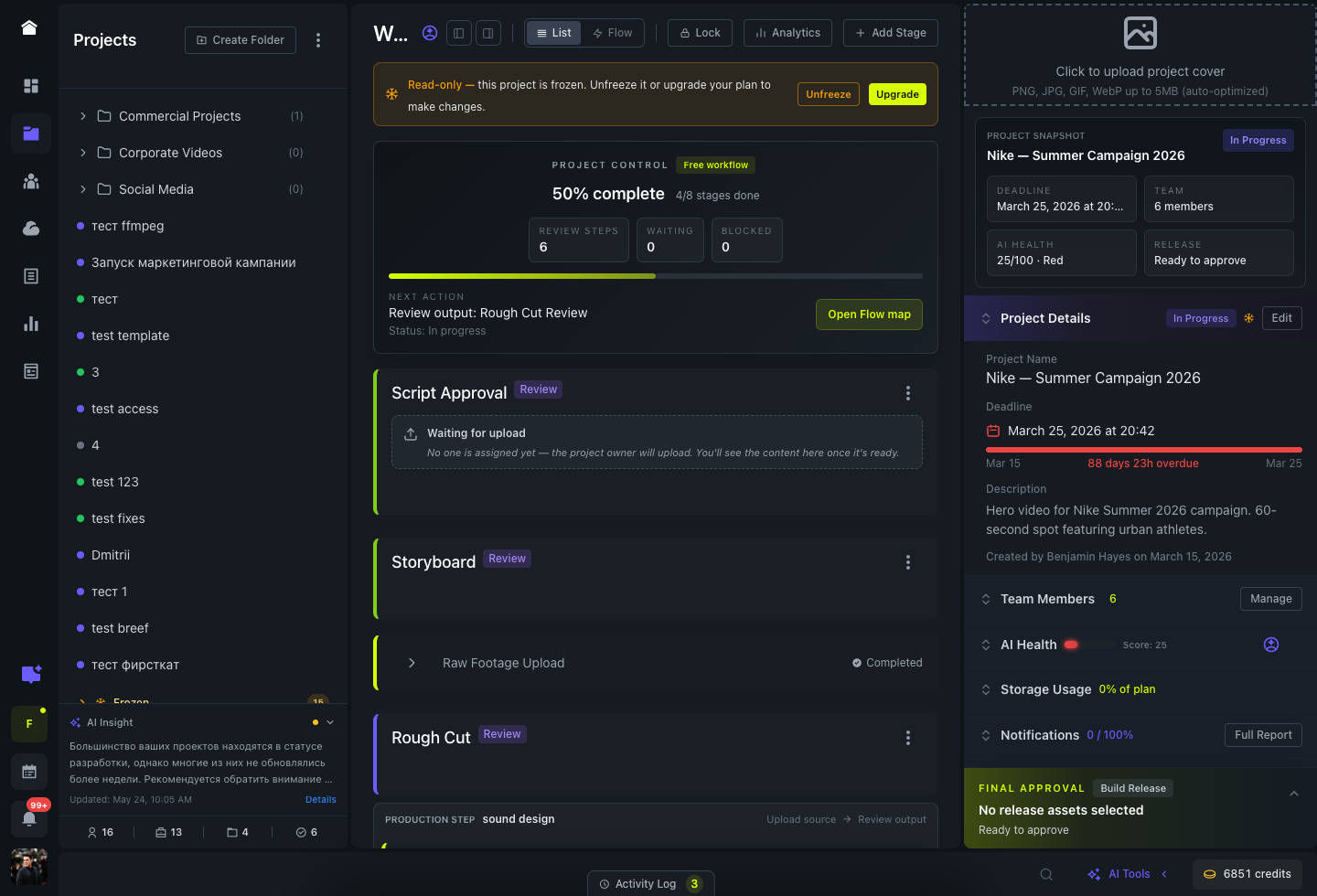
Set up tasks, uploads, review steps, owners, deadlines, dependencies, and approval gates. Each stage holds the material and discussion required to finish it.
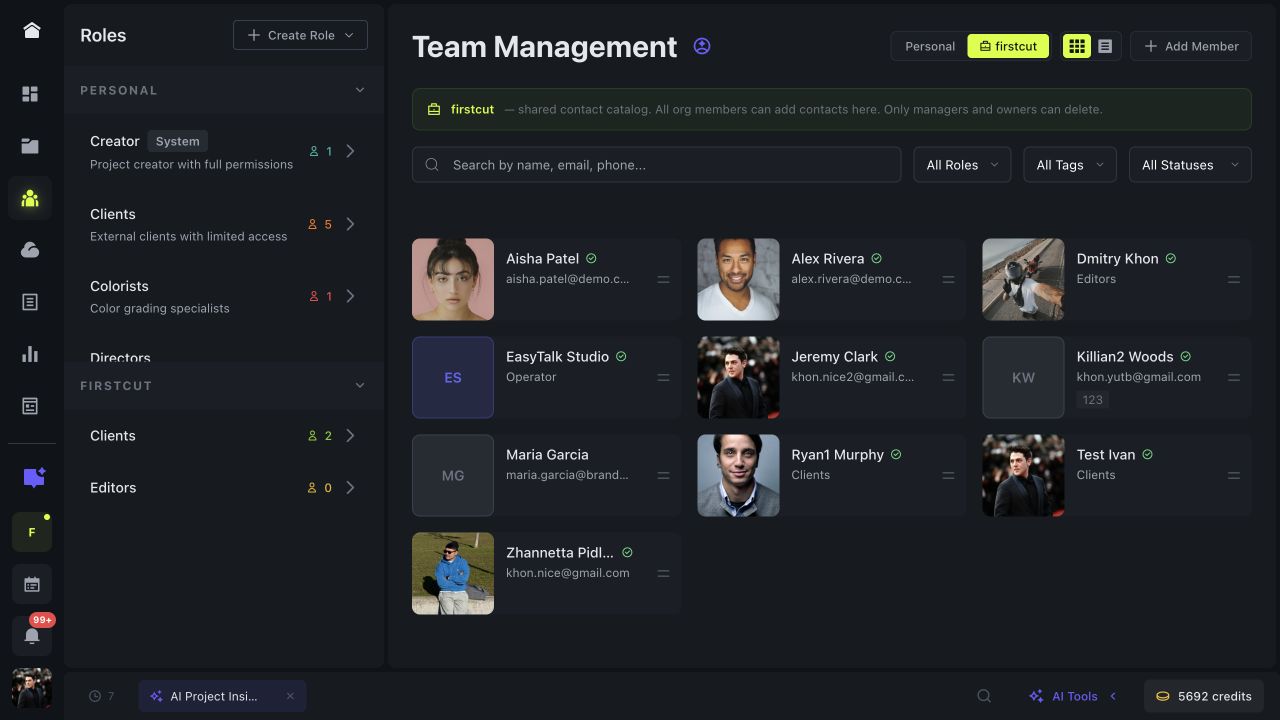
Keep a personal roster and a shared organization catalog. Create roles and groups, assign stage work, and override access when a project needs a different setup.
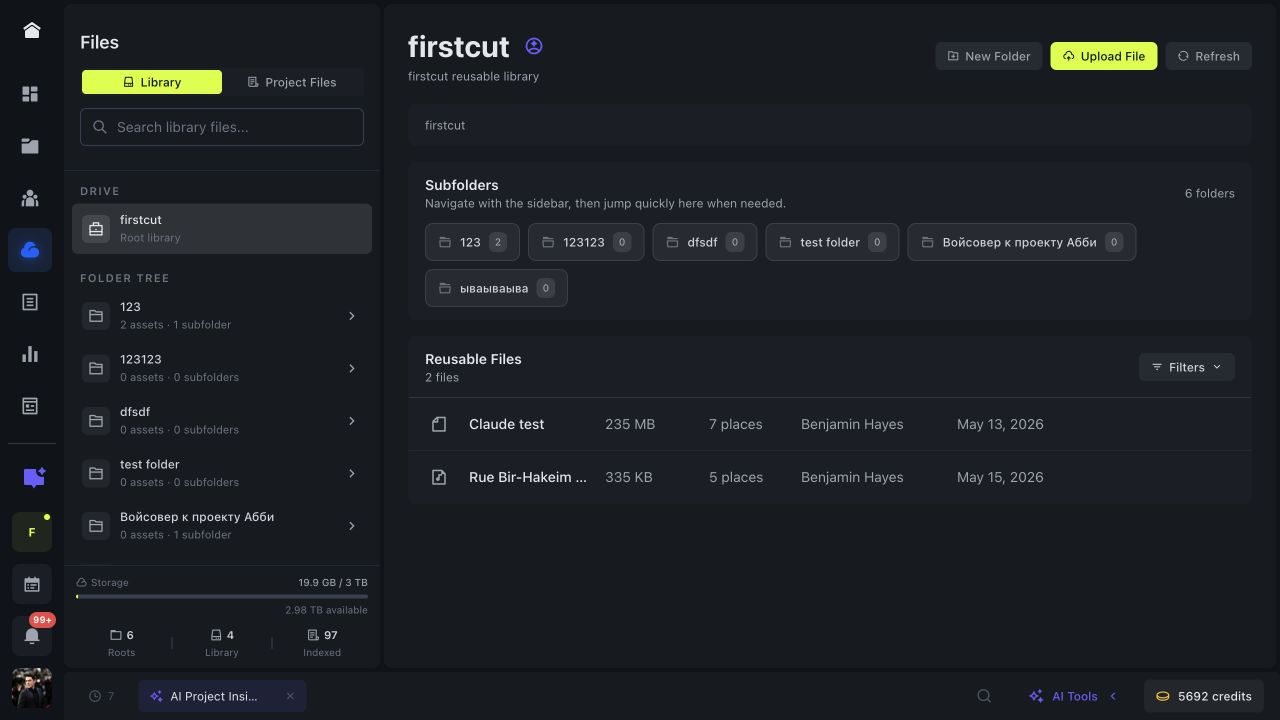
Separate reusable organization material from project files. Put recurring assets in a library, then attach them where the team is already working.
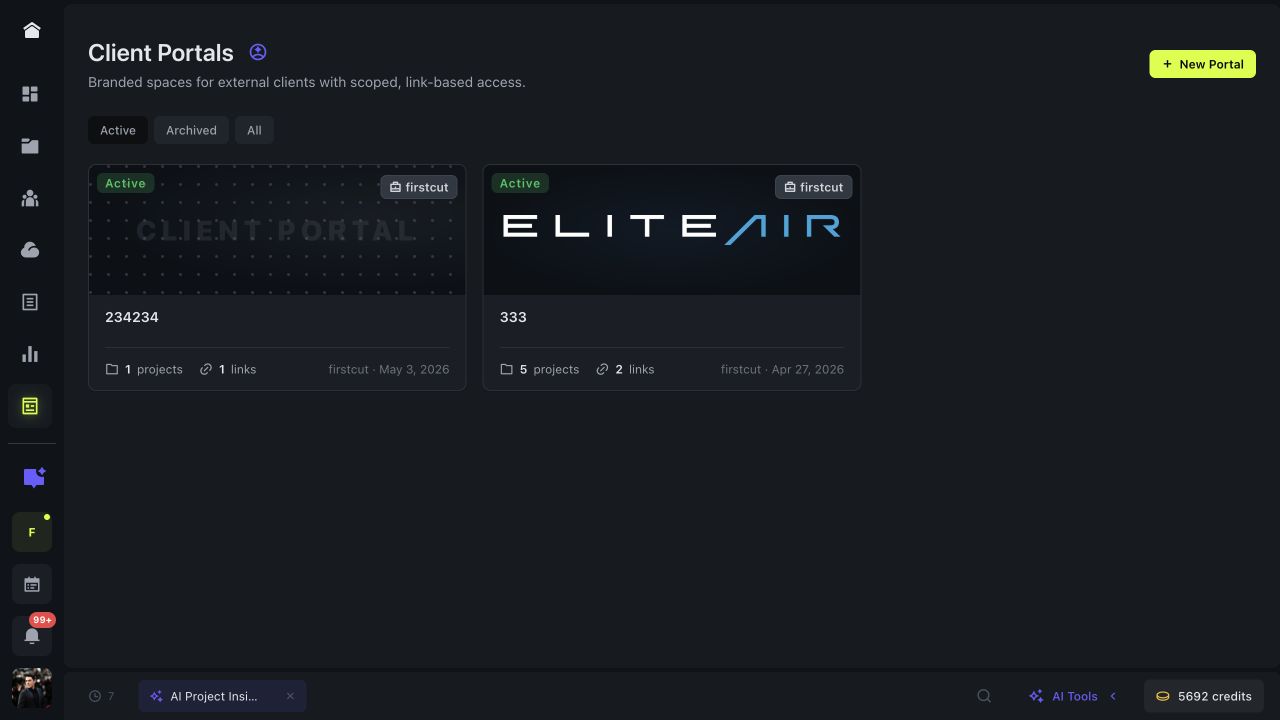
Collect a structured brief, turn it into a project plan, then give the client a branded portal with only the projects and actions they need.
Each scenario starts with a defined brief and ends with an approval that can be traced back to the right version.
Coordinate the shoot, edit rounds, legal notes, brand review, final approval, and delivery package.
Keep scripts, stage visuals, speaker assets, review owners, and the approved playback files in one production.
Repeat a stage template across lessons while reviewers see the correct draft and the team keeps internal notes private.
Plan the live deliverable and every post-event edit with separate owners, deadlines, files, and release decisions.
No installation is required. Stago is an online production system; installing the PWA changes the window, not the data model.
Use a current version of Chrome, Edge, Safari, or Firefox. The install prompt is native in Chromium browsers; iPhone and iPad use Safari’s Add to Home Screen action.
No. Projects, comments, notifications, and permissions are kept current online. If the connection drops, Stago shows a connection-required screen instead of serving stale project data.
Project records live in the Stago application database. Uploaded media and files use the configured managed media/storage service and remain governed by workspace and portal permissions.
No. A client can open a scoped portal link in a supported browser. Installation is optional for the production team as well.
You can open Stago in another browser window or display, but there is no dedicated presentation or second-screen mode. Keep editing in one active workspace to avoid conflicting changes.
Only the projects and actions attached to their portal link. Internal comments and the rest of the production workspace stay outside the client view.